> For the complete documentation index, see [llms.txt](https://bagelpay.gitbook.io/docs/llms.txt). Markdown versions of documentation pages are available by appending `.md` to page URLs; this page is available as [Markdown](https://bagelpay.gitbook.io/docs/documentation/developers-and-api-usage/developer-integration-guide.md).
# Developer Integration Guide
Welcome to the **BagelPay Developer Interaction Guide** - built to help you seamlessly integrate secure, scalable, and customizable payment solutions into your stack.
{% hint style="info" %}
It is highly recommended that developers conduct initial testing in **Test Mode**.
{% endhint %}
## Integration Steps
Follow these steps to integrate BagelPay API:
Step1: Set up your account
Log in using your email or sign in with Google. If you don’t have an account yet, you can create one at .
Step2: Switch to Test Mode
It is strongly recommended that you familiarize yourself with the product configuration and API integration in test mode before switching to the production environment.
**In Test Mode, all the operations and transactions are in sandbox.**
Step3: Get your API keys
API Keys are secret tokens used to authenticate your requests. They are unique to your account and should be kept confidential.
* **On the top navbar, navigate to the “Developer” section.**
* **Click on the "Create api key" button in the "API Keys" tab.**
* **Copy your API key and keep it safe.**
Step4: Create your first product
The step by step guides below will help you understand how to add **One Time Payment products** and **Subscription products**.
[**Add One Time Payment Product**](/docs/documentation/features/editor.md) **(**[One-Time Payment](/docs/documentation/features/editor.md))
[**Add Subscription Product**](/docs/documentation/features/markdown.md) **(**[Subscriptions](/docs/documentation/features/markdown.md))
Step5: List all the product
You can list all the products [through the API](/docs/documentation/developers-and-api-usage/products.md#list-products).
Step6: Get the product detail
You can get the product detail [through the API](/docs/documentation/developers-and-api-usage/products.md#get-product-detail).
Step7: Create checkout sessions for each payment and user independently.
With checkout sessions generated dynamically instead of just using a product payment link, you are able to pass a `request_id` to the session. This allows you to track the payment status and the user that made the payment in your system in a more organized way, and gives you the flexibility to track that payment with any ID you choose instead of relying on BagelPay IDs.
* Create a new api key
* Copy the product id
* Request the payment gateway
```sh
curl --request POST \
--url https://test.bagelpay.io/api/payments/checkouts \
--header 'x-api-key: bagel_test_609C0CF4D5F64CC7910D26D9DF3A834B' \
--header 'Content-Type: application/json' \
--data '{
"product_id": "prod_1961350758759763969",
"request_id": "request_123456789",
"units": 1,
"customer": {
"email": "user@example.com"
},
"metadata": {
"key_1": "value_1",
"key_2": "value_1",
"key_N": "value_N"
}
}'
```
The response is like below:
```json
{
"msg": "Operation successful",
"code": 200,
"data": {
"object": "checkout",
"units": 1,
"metadata": {
"key_1": "value_1",
"key_2": "value_1",
"key_N": "value_N"
},
"status": "pending",
"mode": "test",
"payment_id": "ch_1961373726999154689",
"product_id": "prod_1961350758759763969",
"request_id": null,
"success_url": "https://test.bagelpay.io/success?aggregateId=XXXX",
"checkout_url": "https://test.bagelpay.io/checkout/prod_1961350758759763969/ch_1961373726999154689",
"created_at": "2025-08-29T10:21:51.773+00:00",
"updated_at": "2025-08-29T10:21:51.773+00:00",
"expires_on": "2025-08-29T11:21:51.773+00:00"
}
}
```
The above request will return a checkout session object with a `checkout_url` that you can use to redirect the user to the payment page.
{% hint style="info" %}
checkout\_url example:
```url
https://test.bagelpay.io/checkout/prod_1961350758759763969/ch_1961373726999154689
```
{% endhint %}
Step8: Set up webhooks for real-time updates
BaygelPay uses webhooks to push real-time notifications to you about your payments, subscriptions and refund. All webhooks use HTTPS and deliver a JSON payload that can be used by your application.
For the API details, please refer to the "[Webhook User Guide](/docs/documentation/developers-and-api-usage/webhooks/webhook-user-guide.md#steps-to-receive-a-webhook)".
Step9: Testing the checkout session
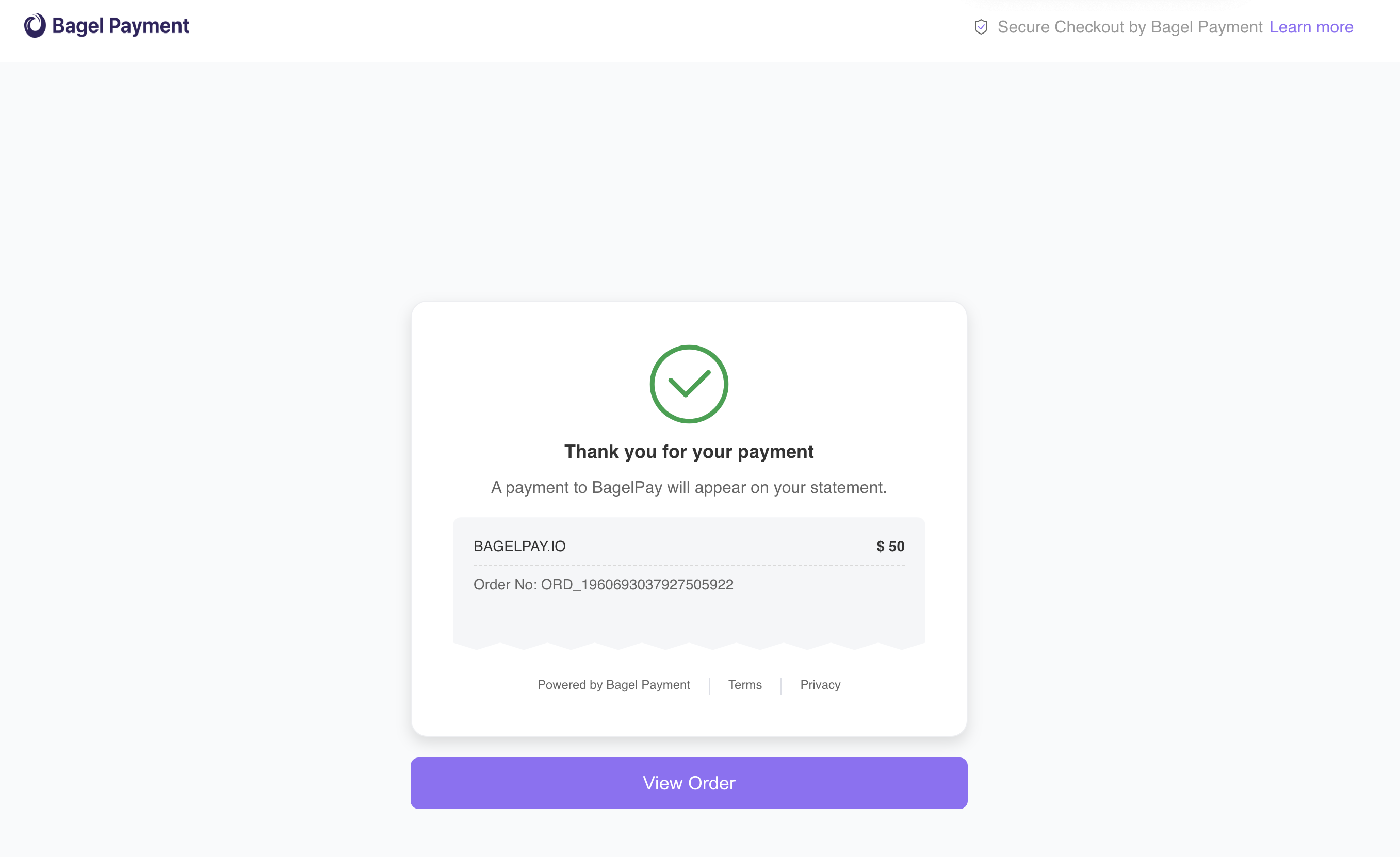
For testing payments, you could use the test card `4242 4242 4242 4242` with any expiration and CVV.
Step13: Go through the Transactions and BalanceStep14: Switching from Sandbox Mode to Live Mode
Once you've successfully completed the payment, payout processes, and API integration in Test Mode, you can begin moving your code to Live Mode.
You do not need to modify your existing business logic or code. Simply follow these steps:
1. **Recreate Product in Live Mode**
* Copy the `product` you set up in Test Mode and recreate the same product configuration in Live Mode.
2. **Recreate New Webhook and API Keys**
* Create a `new Webhook` in Live mode.
* Generate a `new API Key` and Signing Secret.
* Replace the API Key and Signing Secret in your system with the newly generated credentials for the Live Mode.
3. **Update the base URL**
Change the base URL in your code from `test.bagelpay.io` to `live.bagelpay.io`
`Product IDs`, `API keys`, and `webhook URLs` are completely separate and isolated between Test Mode and Live Mode environments.
4. **Update the Webhook、API Key and Signing Secret**.
Replace the API Key and Signing Secret in your system with the newly generated API Key for the Live Mode.
{% hint style="info" %}
👏🏻 Once the above steps are completed, your application will be fully operational in Live Mode — with no changes required to your existing code logic.
{% endhint %}
## Environment URLs
Use the appropriate base URL for your environment:
* Test Mode: [`https://test.bagelpay.io`](https://test.bagelpay.io/)
* Live Mode: [`https://live.bagelpay.io`](https://live.bagelpay.io/)
Learn more about [Test Mode vs Live Mode](/docs/documentation/testing-mode/test-mode-vs-live-mode.md).
## Response codes
Bagel uses standard HTTP codes to indicate the success or failure of your requests.
In general, 2xx HTTP codes correspond to success, 4xx codes are for user-related failures, and 5xx codes are for infrastructure issues.
| Status | Description |
| ------ | --------------------------------------- |
| 200 | Successful request. |
| 400 | Check that the parameters were correct. |
| 401 | The API key used was missing. |
| 403 | The API key used was invalid. |
| 404 | The resource was not found. |
| 429 | The rate limit was exceeded. |
| 500 | Indicates an error from servers. |
## Need Help?
If you need more support or would like to talk to our experts, you can book a [Google meeting](https://calendar.app.google/9LWwo3taQm9syzCr8) or join our [Discord](https://discord.com/invite/9WZfxfzjb8) or join our [X](https://x.com/BagelPayment).
Feel free to join 3,000+ digital businesses using Bagel Payments to sell globally, without borders or bottlenecks.
[Request a Demo](https://calendar.app.google/iWMHiFpMhutQfmTt8) | [Talk to Sales](mailto:sales@bagelpayment.com)